Tips for better results
How to get the most out of SecretSauce from day one
1. Spend time setting up your Brand Brain
The highest-leverage thing you can do in SecretSauce is spend your first 20 minutes getting your Brand Brain right.
Your Brand Brain holds your visual identity, voice, values, and founding story. When it's complete, everything you create afterward does less work because SecretSauce already knows what you look and sound like.
When it's thin, you end up writing long detailed prompts just to get something that looks like you, then reworking the output anyway. This is why AI content often takes time to refine.
Tap My Brand > Update Brand add real context: examples, references, a clear description of your visual identity. You can also do this right in the chat by telling SecretSauce what your brand looks and sounds like, and it will update your Brand Brain as you go.
20 minutes here saves you hours later.
2. Create Asset Cards for anything you reuse
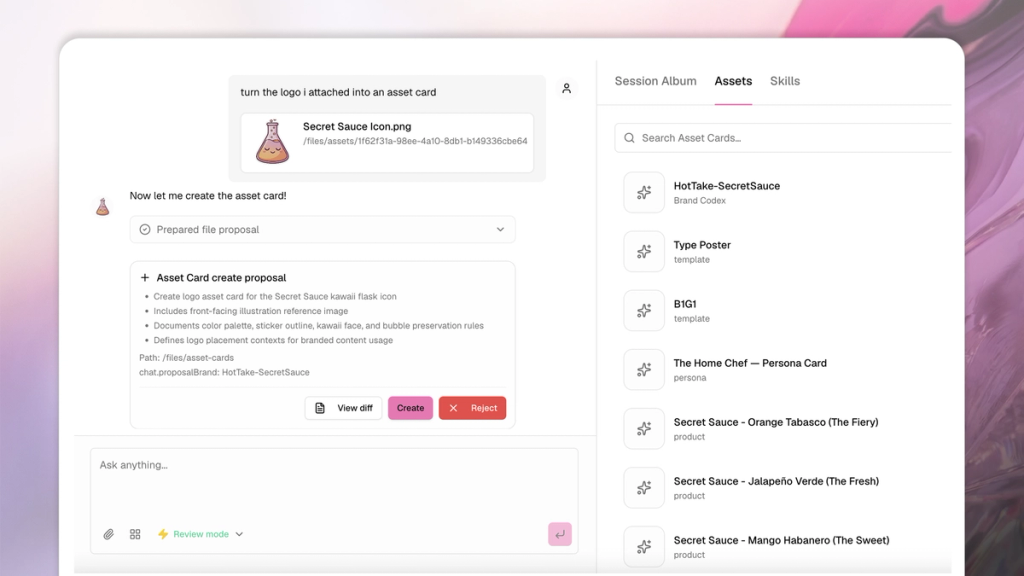
Anything that needs to look exactly the same every time should be an asset card: your logo, product shots, UI screenshots, avatars, packaging, etc.
Two reasons:
- First, once something is an asset card you can call it in any chat by tagging it with @, so you never have to upload it again.
- Second, SecretSauce treats a locked asset as fixed reference material, which means it reproduces it faithfully instead of redrawing or distorting it. This matters most for the things AI tends to mangle: exact logos, real product packaging, screenshots of your interface.
You can create asset cards in the chat by uploading an image and telling SecretSauce to create an Asset Card.
If you find yourself describing the same product, screen, or person more than once, that's your sign to make it a card.
3. Build Skills and Templates for tasks you repeat
If you give SecretSauce the same kind of instructions regularly (weekly social posts, product launch assets, email headers), save those instructions as a skill or template.
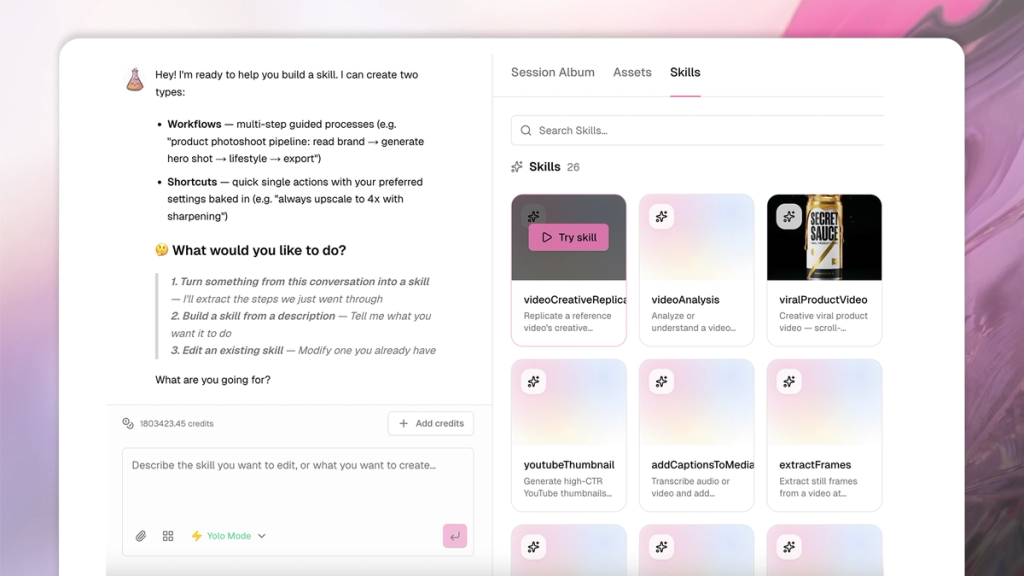
A skill captures a full workflow: the format, the sizing, the tone, the number of variations, whatever you'd normally type out each time. Learn more here.
A template saves a format: the layout, dimensions, and structure of a specific output. Learn more here.
Once either is saved, you call it and go straight to output instead of re-explaining the task from scratch.
4. Stay in Review Mode to save credits
SecretSauce has two modes that control how much it does on its own: Review and Yolo.
Review mode is the safer default. It shows you what SecretSauce is about to generate and waits for your go-ahead, so you can catch a wrong direction before it spends credits on something you'll throw away.
Yolo mode moves faster and makes more decisions for you, which is great once you trust the direction. But it can burn credits on output you didn't want if the concept isn't locked in yet.
5. Storyboard videos before you generate
Video uses more credits than images, so you want to make sure the plan is right before you commit.
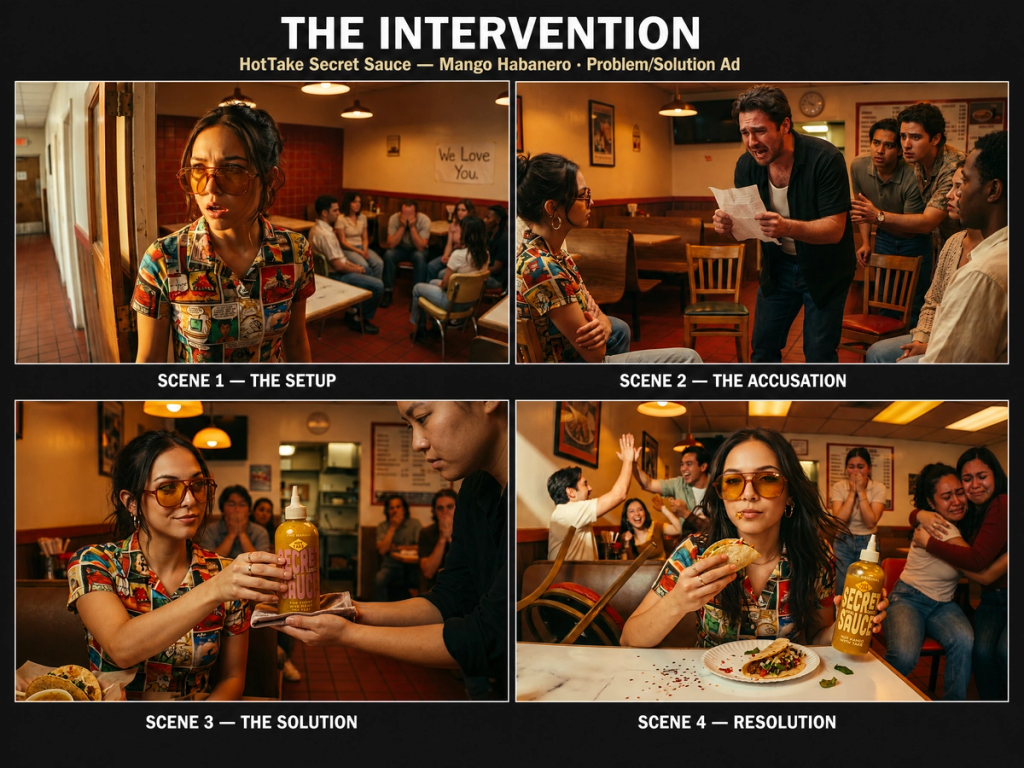
Before generating a video, ask SecretSauce create the key frames as a storyboard first. Images are cheaper and faster, so you can see whether the composition, styling, and sequence are working before anything moves.
Once the storyboard looks right, generate the video from it. You've already confirmed the hard part, so you're far less likely to spend credits on a video that misses.
6. Fork when you want to explore without losing what you have
When you're deep into a concept and want to take it in a different direction - a different audience, a different format, a different market - don't start a new chat and rebuild your context from scratch.
Fork the prompt instead.
- Hover over the message
- Tap the refresh icon that appears
- Tap Fork
- Go to the new tab that opens
This is also useful when you want to compare two creative approaches before committing to one. Run both in parallel, see what lands, and keep whichever works.
7. Edit the prompt, not the whole chat
If something went wrong early in a conversation, you don't need to start over. Go back to the message where things went off track, edit it, and everything downstream regenerates automatically from that point.
The further back the mistake, the more time this saves you.
- Hover over the message
- Tap the refresh icon that appears
- Tap Revert
- Go to the new tab that opens